1. Software vs hardware
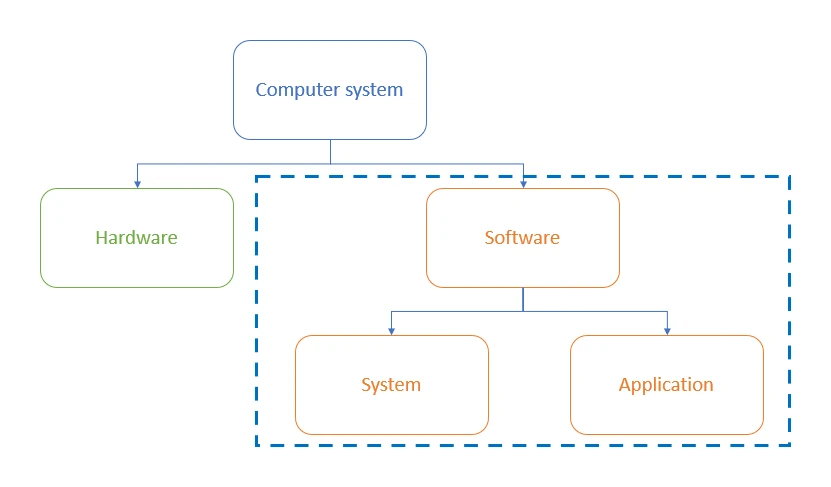
A computer is built from two things working together:
- Hardware: the physical parts you can touch (CPU, RAM, hard drive, keyboard, screen).
- Software: the programs that tell the hardware what to do, made of binary instructions stored in memory.
Software itself splits into two big categories:
- System software: programs needed to make the computer itself usable. The operating system and utility programs belong here.
- Application software: programs that the user chooses to install in order to do a specific job (write a document, edit photos, play a game).
Common exam question
Naming the type of software from its description
Question: Identify the type of software that does a stated job, or write the matching term beside each description in a table (1 mark per term).
Asked in 3 of the 17 papers, one mark per term. Software is the programs or instructions that operate the computer; hardware is the collective term for its physical components. Application software provides the services the user requires and lets the user carry out tasks. The operating system looks after the computer's main functions, such as files, memory and multitasking; it is also the software that manages inputs and outputs (or system software) and manages interrupts (or the interrupt handler). Firmware is the software stored in ROM, including the BIOS and the bootloader.
Utility software maintains and protects the computer: in a list of spreadsheet, anti-virus, web browser and database, the utility is the anti-virus, and the other three are applications.
Exam tip
Say whether the software serves the computer or the user
A four-mark question contrasting system software with application software, with an example of each, gives two marks for the contrast and one per example. The contrast is who is served: system software provides the services the computer requires, application software those the user requires. Give the operating system or a utility (defragmentation software, antivirus, a firewall) for system software and a generic type (word processor, web browser, video editor) for application software. Almost every Paper 1 scheme says brand names of software or hardware earn nothing, so write "word processor" and "operating system", never a product name such as "Windows".
2. System software
System software is the software a computer relies on to boot, look after its own hardware, and give a stable environment to run in.
It is essential. Without system software, the hardware just sits there. The two main kinds of system software are:
- The (OS), the program that coordinates everything.
- Utility programs, small specialised tools that maintain and protect the system.
Utility programs
Utility programs are small pieces of system software that maintain, enhance, or repair a computer.
Common utilities you should be able to name:
| Utility | What it does |
|---|---|
| Defragmentation | Reorganises files on a magnetic hard disk so each file's blocks are stored together, reducing seek time and improving read speed |
| Compression | Reduces the size of files (e.g. zipping a folder for sending by email) |
| Encryption | Scrambles a file or disk so that only someone with the correct key can read it |
| Backup | Makes copies of files to a safe location, so they can be restored if the original is lost |
| Antivirus / anti-malware | Scans the computer for known malware and removes any that is found |
| Firewall | Filters network traffic, blocking suspicious or unauthorised connections |
| Task manager | Shows the running programs, how much CPU and RAM each is using, and lets the user end an unresponsive program |
| Disk-cleanup | Removes temporary files, browser caches, and other unwanted data to free up disk space |
Most operating systems include a basic set of utility programs out of the box; others can be downloaded as separate applications.
3. Application software
Application software is software the user chooses to install and run to perform a particular task. Each "app" is designed for one job.
Some common categories:
| Category | Examples (generic, not brand names) |
|---|---|
| Productivity | Word processor, spreadsheet, presentation software, database manager |
| Communication | Email client, web browser, instant messaging app, video-call software |
| Creative | Photo editor, video editor, audio editor, 3D modelling software |
| Entertainment | Video games, media player, streaming app |
| Educational | Maths drill program, language-learning app, encyclopedia |
| Web | Web browser (e.g. for online services), online office tools |
System vs application: a quick test
| Question | If yes... |
|---|---|
| Is it essential to start the computer or to manage its hardware? | System software |
| Does the user choose to install it specifically to do a particular task? | Application software |
| Is its main job to maintain, optimise or protect the computer? | System software (utility) |
| Does it create or edit user content? | Application software |
4. What an operating system does
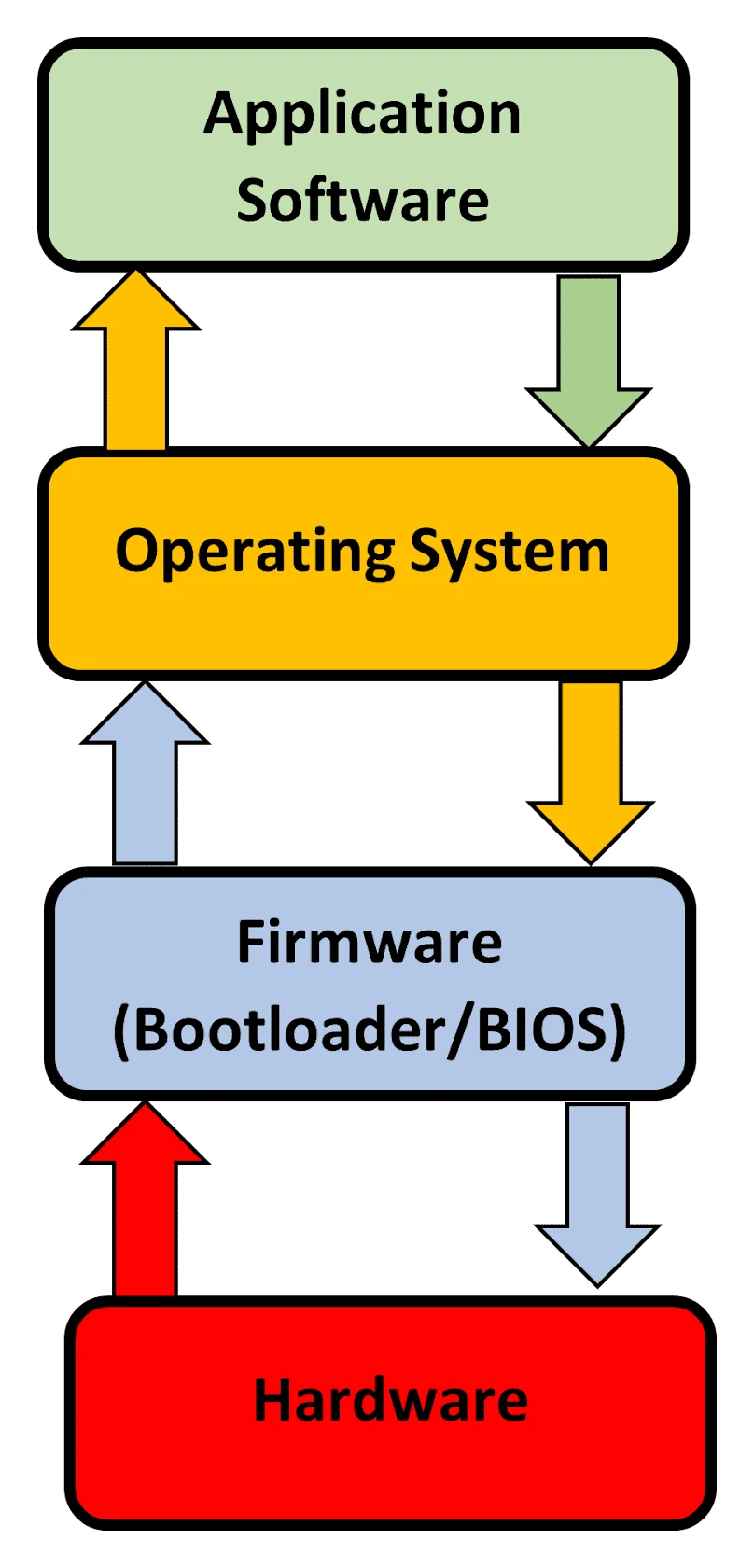
An operating system (OS) is system software that takes charge of the hardware and gives application software a controlled environment in which to run.
Examples: Microsoft Windows, macOS, Linux, Android, iOS, Chrome OS.
The user does not have to know where on disk a file lives, or how the printer talks to the CPU, or how to share RAM between two open programs. The OS handles all of that. It hides the complexity of the hardware behind a clean interface.
There are eight main functions of an operating system to know. Each one is worth remembering separately because exam questions often ask "name and describe two functions".
Common exam question
Naming and describing the functions of the operating system
Question: Name a function of the operating system and describe it, complete a table of functions and descriptions, or describe the purpose of the operating system (1–3 marks).
Asked in 4 of the 17 papers, one mark for a function's name and one for its matching description, so a name alone earns half. Pair each name with its job: managing memory (allocates memory to each process and stops two processes using the same location), managing peripherals (passes data to and from the hardware, via drivers), multitasking (switching between tasks), platform for running applications (lets applications use the hardware), managing files (create, copy, move, rename, delete), system security (usernames and passwords), user accounts, user interface and handling interrupts. For its purpose, any three: it manages the hardware, provides a platform to run software, provides a user interface and performs a computer's basic functions.
Loading the bootstrap is not an operating-system function: the firmware does it before the operating system runs.
Function 1: File management
The OS lets the user create, name, rename, copy, move, delete and search files and folders. It also tracks the physical location of each file on the disk, so the user is freed from worrying about exactly where bytes sit.
The OS also controls file permissions: who can read, write or delete each file. This is essential on shared computers and on networks.
Function 2: Memory management
The OS allocates RAM between the programs that are running. When a program opens, the OS reserves enough RAM for its code and data. When a program closes, the OS frees that RAM for the next program to use.
If RAM runs out, the OS uses virtual memory (covered in topic 9) to spill inactive data onto secondary storage.
Function 3: Multitasking
A modern OS lets the user run several programs at once: a web browser, an email client and a music player, for example. The CPU can only run one instruction at a time, but the OS switches between programs so rapidly (millions of times per second) that they appear to run simultaneously.
The OS uses scheduling to decide which program gets the CPU at each moment, balancing priority and fairness.
Function 4: Peripheral management and device drivers
The OS coordinates communication with every connected device: keyboard, mouse, monitor, printer, USB drive, network card. To do this it uses device drivers, which are small pieces of software (often supplied by the device manufacturer) that translate between the OS and the specific hardware.
When a new device is plugged in, the OS detects it (plug-and-play) and either uses a built-in generic driver or asks the user to install a specific one.
Function 5: User interface
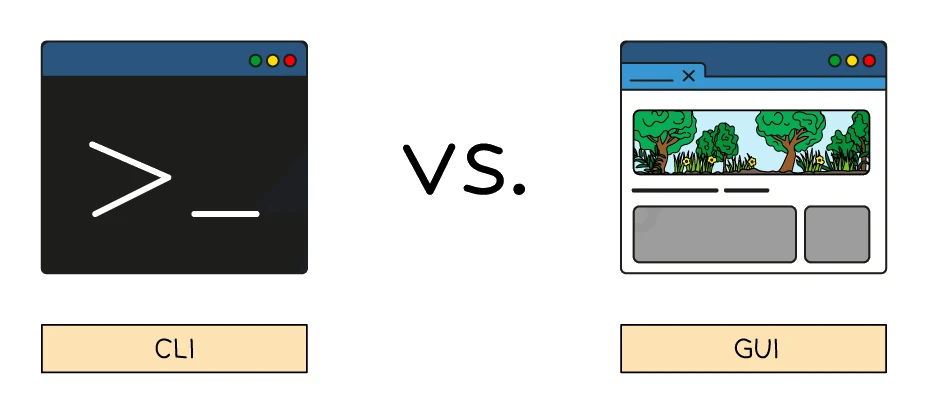
The OS provides the way the user interacts with the computer. Four common kinds of user interface:
| Interface | What it is | Best for |
|---|---|---|
| Command Line Interface (CLI) | The user types text commands; the OS responds with text | Advanced users; scripts and automation; low system overhead |
| Graphical User Interface (GUI) | The user clicks windows, icons, menus and pointers (WIMP) with a mouse, finger or trackpad | Most personal computers and smartphones |
| Menu interface | The user makes a single choice from a small menu, then sees the next menu | Cash machines, vending machines, set-top boxes |
| Natural language interface (NLI) | The user speaks (or types) in plain language; the computer interprets it | Voice assistants like Siri, Alexa, Google Assistant; smart-home devices |
Side-by-side advantages and disadvantages
| Interface | Advantages | Disadvantages |
|---|---|---|
| CLI | Uses little memory and CPU; very fast for experts; great for scripting | Steep learning curve; users must remember commands; one typo and the command fails |
| GUI | Easy to learn; visual; no need to remember commands | Uses more memory and CPU; slower than typing a known command; repetitive tasks are tedious |
| Menu | Simple; reliable; works well on small screens or with limited input | Inflexible; deep menus get tedious; not all tasks fit a simple linear menu |
| NLI | Hands-free; works for users with limited motor skills; intuitive | Speech recognition can misunderstand; privacy concerns over recording; needs strong processing power |
Function 6: Security
The OS protects the system and user data from accidental or malicious damage. Typical security features:
- User accounts with passwords, so only authorised users can log in.
- Access permissions that say which user can read or modify each file.
- Built-in firewall that filters network traffic.
- Built-in antivirus that scans new files for known malware.
- File and disk encryption so that stolen drives cannot be read without the key.
- Update management so security patches are installed automatically.
Function 7: Interrupt handling
The OS responds to interrupts, which are signals from hardware or software that need immediate attention. Interrupts are covered in detail in section 6.
Function 8: Providing a platform for application software
The OS gives apps standard ways to use hardware and services. An app does not have to know how to talk directly to a specific printer or graphics card. It asks the OS, and the OS handles the details. This is what makes the same word processor able to work on many different computers.
5. Firmware
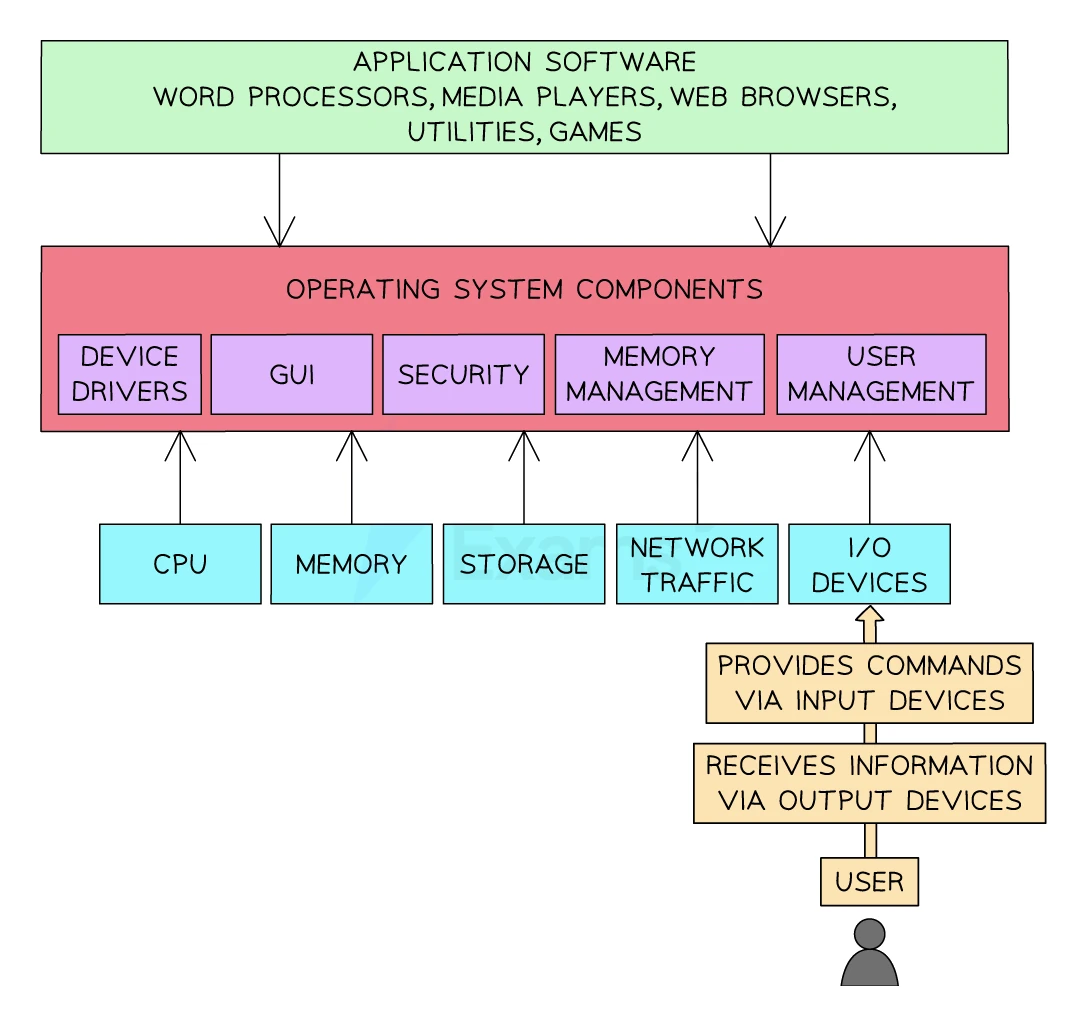
Firmware is software that is stored permanently inside a hardware device to make that device work. It is the lowest-level software on a computer.
Firmware sits between hardware and the operating system. Key facts:
- Stored in ROM (or a similar non-volatile chip) so it survives a power-off.
- Loaded before the , the moment the computer is switched on.
- The most famous firmware is the BIOS (Basic Input/Output System), or its modern replacement UEFI, which runs the bootstrap that finds and loads the operating system from secondary storage.
- Other firmware lives inside printers, routers, hard drives, washing machines and many other devices.
- Firmware can sometimes be updated (a "firmware update"), but unlike apps it does not change every day.
Exam tip
Firmware runs first and loads the operating system
Keep the layers in order: the bootloader (firmware) runs on the hardware, the operating system runs on the firmware, and applications run on the operating system. So the set of instructions handed to the operating system so that it can run is the firmware, and bootloader, BIOS and bootstrap are all accepted names for it. If a question gives you the layers and asks which software sits directly on the operating system, the answer is application software.
Hardware → firmware → OS → application: the communication chain
A click in a word processor travels through several layers:
- The user clicks a button in a word processor (application software).
- The word processor asks the to print the document.
- The OS uses the for the printer to format the request.
- The driver speaks to the in the printer, which controls the printer's mechanics.
- The hardware in the printer puts ink on paper.
Information flows back the other way too: when the printer finishes (or runs out of paper), the firmware sends an up the chain so the OS, then the application, then the user can be told.
6. Interrupts
An interrupt is a signal delivered to the CPU telling it to pause the current task and deal with something more urgent.
The CPU spends almost all its time in the fetch-decode-execute cycle, working through whatever program is currently running. An interrupt breaks the loop so a more urgent task can be handled at once.
How interrupts are generated
Interrupts come from two sources:
- Hardware interrupts are raised by physical components when they need attention.
- The keyboard has been pressed.
- The mouse has been moved or clicked.
- The printer has run out of paper.
- A USB device has been plugged in.
- The power button has been pressed.
- Software interrupts are raised by running programs or by the OS itself.
- A program tries to divide by zero (an error).
- A program asks the OS to perform a service (e.g. open a file).
- Two programs collide on the same memory address.
- A program has stopped responding.
Common exam question
Stating what an interrupt is and giving examples
Question: State the purpose of an interrupt, name the signal that lets multitasking happen, or give examples of hardware and software interrupts (1–2 marks).
Asked in 3 of the 17 papers. An interrupt is a signal that tells the processor something needs its attention; interrupt is also the one-word answer when a question asks which signal is sent so that multitasking can occur. Hardware interrupts come from devices: a key pressed, the mouse moved or a button clicked, a device plugged in, a printer jammed or out of paper. Software interrupts come from running programs: division by zero, two processes trying to use the same memory location, a null value. Asked for an input device and an interrupt it can generate, make the pair match: keyboard with a key pressed, mouse with a movement or a click.
How the CPU handles an interrupt
The standard step-by-step sequence for handling an interrupt:
- The current fetch-decode-execute cycle finishes so the CPU is at a clean stopping point.
- The CPU saves the contents of its registers (PC, ACC and others) to a special area in RAM called the stack, so the original task can be resumed later.
- The CPU looks up the in the Interrupt Service Routine (ISR) table. The ISR is a small program that knows how to handle this particular kind of interrupt.
- The CPU runs the ISR; for example, it reads the keystroke from the keyboard buffer and passes it to the active program.
- When the ISR finishes, the CPU restores the saved register values from the stack.
- The CPU resumes the original task exactly where it left off.
Common exam question
Explaining how the processor handles an interrupt
Question: Describe how interrupts are used when a key is pressed, or explain how the processor manages the program it is running and an interrupt it receives (5 marks).
Set in 2 of the 17 papers, five marks from a list of steps, so give the whole sequence. The interrupt is generated, given a priority, sent to the CPU and placed in the interrupt queue. The processor finishes the current fetch-decode-execute cycle and checks the queue. If the interrupt's priority is lower than the running process's, the processor simply continues with that process. If it is higher, the processor saves the current process's registers on the stack, identifies the source of the interrupt and calls the matching interrupt service routine (ISR), which handles it. If another higher-priority interrupt is waiting the steps repeat; otherwise the processor retrieves the registers from the stack and continues the original program. The queue, the priority check and the lower-priority case are separate credited points.
Interrupt priorities
Not every interrupt is equally urgent. The OS assigns priorities:
- A power-failure interrupt is critical and must be handled immediately.
- A keyboard interrupt is high-priority (the user expects an instant response).
- A printer "out of paper" interrupt is less urgent than a CPU temperature warning.
If a higher-priority interrupt arrives while a lower-priority one is being handled, the CPU can save its state again and switch to the more urgent one (nested interrupts).
Why interrupts matter
Interrupts let the CPU respond instantly to outside events without having to constantly poll every device. They are what make multitasking feel responsive: every keystroke, mouse movement, network packet and disk-completion message reaches the CPU through an interrupt.