1. The internet and the World Wide Web are not the same thing
People often use "internet" and "World Wide Web" as if they were the same word. They are not. One is a network; the other is a service that runs on that network.
| The internet | The World Wide Web (WWW) | |
|---|---|---|
| What it is | The global network of interconnected computers, cables and routers | A collection of web pages and other resources accessed using the internet |
| Type | Infrastructure (the physical and logical network) | A service running on top of the infrastructure |
| Year it appeared | 1969 (the ARPANET, the internet's ancestor) | 1989, invented by Tim Berners-Lee |
| Accessed using | Many different applications and protocols | A web browser, using HTTP/HTTPS |
| Other examples of what runs on it | Email (SMTP/POP3/IMAP), file transfer (FTP), online gaming, video calls, VoIP | The web is one of many internet services |
The simplest test: if you need a to use it, it is the . Anything you do without a browser (sending email from a mail app, joining a video call, streaming music) is using the internet but not the web.
Another way to put it: the could exist without the World Wide Web, but the World Wide Web could not exist without the internet. The web is a service built on top of the internet's networking machinery.
Syllabus definitions: the internet is the infrastructure; the World Wide Web is the collection of websites and web pages that are accessed using the internet. Saying "the internet is the web" does not show the difference.
Common exam question
Naming the World Wide Web from its description
Question: Complete a table of internet terms: beside the description of all the web pages that can be reached using the internet, write the term (1 mark per row).
Asked in 2 of the 17 papers, both times as one row of a table. The term is the World Wide Web (one scheme also accepts WWW). The row tests the distinction above: the internet is the network, the web is the collection of websites and pages reached through it, so "the internet" is not the term described.
The other rows of those tables range across this note and its neighbours: cookie, URL, web server, HTML and HTTP in one paper; IP address, web browser, DNS, proxy server and hacking in the other. A web server stores web pages and returns the page a client requests; HTTP is the protocol for requesting and sending web pages; HTML is the language a website is written in, whose tags include <head> and <body>.
2. The web browser
A web browser is application software used to request, receive and display web pages from web servers.
Common browsers: Google Chrome, Mozilla Firefox, Safari, Microsoft Edge, Opera, Brave. The exam never rewards brand names, only generic features.
What a browser does, step by step
When the user types a URL or clicks a link:
- The browser takes the the user has typed (or the link they clicked).
- It sends an HTTP or request to the web server identified in the URL.
- The web server responds with the requested resource (usually an document, plus any , JavaScript, images, audio or video the page references).
- The browser renders the HTML, CSS and JavaScript: it interprets the code and produces the visible web page on the screen.
- As the user interacts with the page, the browser may send more requests (forms, links, downloads) and update the page accordingly.
Common browser features
Every modern browser includes a similar set of user-facing features.
| Feature | What it does |
|---|---|
| Address bar | Where the user types a URL (or pastes one). Usually also doubles as a search bar |
| Back / forward buttons | Navigate through previously visited pages in the current tab |
| Refresh button | Reload the current page (in case it has changed, or got stuck) |
| Home button | Jump back to a default home page set by the user |
| Tabbed browsing | Keep several pages open at once and switch between them within one window |
| Bookmarks / favourites | Save links to frequently visited pages so they can be reached with a single click |
| History | A record of previously visited pages, searchable by URL and title |
| Cookie storage and management | Holds cookies set by websites; lets the user view, allow or block them (see section 5) |
| Private / incognito browsing | A mode that does not save history or cookies for that session |
| Search bar | Direct search through a default search engine without typing the engine's URL |
| Extensions / add-ons | Optional third-party features that add functionality (ad blockers, password managers, dark mode, etc.) |
| Download manager | Tracks files the user has saved from web pages |
| Pop-up blocker | Stops unwanted pop-up windows from being opened by websites |
Browser vs search engine
A browser is not a search engine, although the two are easy to mix up.
- A browser is software you install on your computer or phone (Chrome, Firefox).
- A search engine is a website you visit in that browser (Google, Bing, DuckDuckGo).
You can use Chrome to visit Bing, or use Edge to visit Google. The browser and the search engine are independent.
Common exam question
Describing the purpose of a web browser
Question: Describe the main purpose of a web browser (2 marks), or identify the software that requests a web page from the server's IP address and displays it (1 mark).
Asked in 4 of the 17 papers. For the 2-mark version, or the table row that wants the browser's description, give both halves: a web browser is software that displays web pages (lets users view and access them), and it does this by rendering HTML, turning the HTML code it receives into the page on screen. "It displays web pages" alone earns the first mark; rendering HTML is the second. For the 1-mark version the answer is simply web browser, whether the software is described as sending the request to the IP address or as displaying the page.
The question can also ask which browser function does a job: storing cookies fills in payment details automatically; storing bookmarks (or favourites) gives quick access to regularly used sites.
3. The structure of a URL
A URL (Uniform Resource Locator) is the text-based address of a specific resource on the web.
A URL is built from three main parts, in a fixed order:
protocol://domain-name/file-path
Common exam question
What a URL is and the parts it contains
Question: State what is meant by a URL (1 mark) and identify two different parts of a URL (2 marks), or supply the description of a URL in a table of internet terms (1 mark).
Asked in 2 of the 17 papers. A URL is the text-based address of a website or web page: say "text-based", because that is what separates it from the numerical IP address and it is the credited definition. Its parts are the protocol, the domain name and the file name; any two of the three earn the 2 marks. In the table version either the text-based-address description or saying it is formed from the protocol, the domain name and the file or folder name fills the row.
Why URLs are text-based
Computers route requests using IP addresses like 82.165.83.156. Numeric addresses are short for computers but impossible for humans to remember. A URL is the human-readable version: easy to type, easy to recognise, easy to share. The (next section) does the work of translating between the two.
4. How a web page is loaded
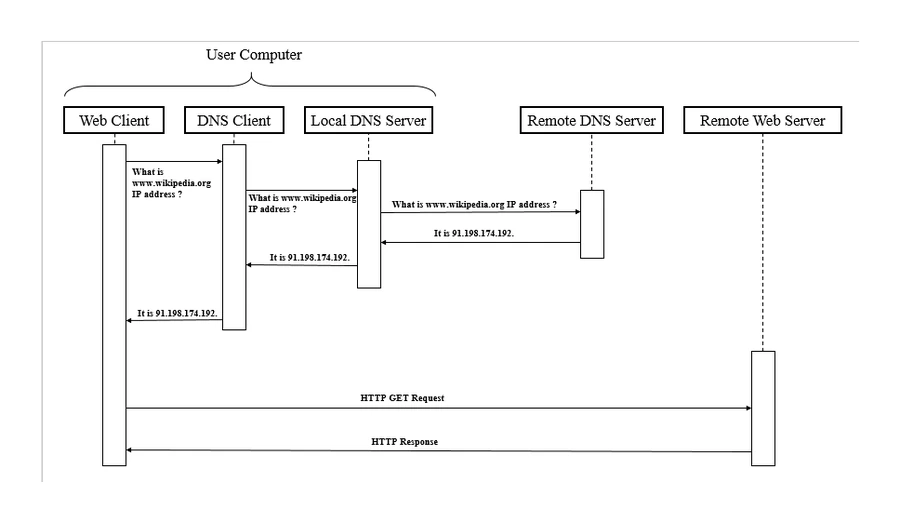
Putting the pieces together, here is the full journey from typing a URL to seeing the page:
- The user enters a in the browser's address bar (or clicks a link that contains one).
- The browser strips out the domain name from the URL.
- The browser asks a DNS server to translate the domain name into the IP address of the web server hosting that site.
- The browser sends an HTTP/ request to that IP address, asking for the resource at the URL's file path.
- The receives the request, finds the requested resource, and sends back an HTTP/HTTPS response.
- The response contains the document for the page, plus references to any , JavaScript, images and other media the page needs.
- The browser renders the HTML (with CSS to style it and JavaScript to make it interactive) into the visible web page.
- Any extra files referenced (images, scripts) trigger their own HTTP requests, which the browser fires off in parallel.
- The user sees the finished page and can interact with it (click links, fill in forms, etc.).
Common exam question
Showing how a web page is located and retrieved
Question: Draw and annotate a diagram showing how a web page is located, retrieved and displayed when a user enters a URL (5 marks), or name the system that stores URLs with their IP addresses (1 mark).
Asked in 4 of the 17 papers, twice as the diagram and twice as a 1-mark identification of the domain name server (DNS). One mark per labelled part, up to five: URL sent from browser to DNS; DNS finds the matching IP address in its table of URLs and IP addresses; otherwise the next DNS is asked; IP address returned to browser; browser requests the page from the web server at that address; web server processes the request and returns the page as HTML; browser renders the HTML.
Four of the seven creditable parts are DNS steps, so a diagram that skips the DNS earns at most three marks. Label what travels along every arrow: the marks are for labelled parts, not shapes.
The Domain Name System (DNS)
The DNS (Domain Name System) is the 's directory service, mapping human-readable domain names to numerical IP addresses.
Think of DNS as a global phonebook. When the browser needs to know where www.example.com is, it asks a DNS server. The DNS server looks up the domain in its records and replies with the IP address. The browser can now connect directly to the server at that address.
DNS is what makes URLs usable: without it, every user would have to remember IP addresses. DNS is hierarchical (root servers, top-level domains like .com, .org, individual sites), but the simple "domain name → IP address" mapping is enough at this level.
The web server
A web server is a computer (or set of computers) whose job is to store web pages and respond to browser requests for them. Typical web-server features:
- Available 24/7 so people anywhere in the world can reach the site at any time.
- Serves the same page to many users at once (sometimes thousands or millions).
- Maintained by the website's owner (or a hosting company); responsible for keeping it patched, backed up and secure.
Big websites use many web servers behind a load balancer to share the traffic; small websites may live on a single shared server with many other sites.
HTML: the language of web pages
HTML (Hypertext Markup Language) is the markup language used to define the structure and content of a web page.
HTML is made up of tags that wrap content:
<p>This is a paragraph.</p>: a paragraph<h1>Welcome</h1>: a top-level heading<a href="...">Click here</a>: a hyperlink<img src="..." alt="...">: an embedded image<ul>and<li>: bullet lists
A complete simple HTML page might look like:
<!DOCTYPE html>
<html>
  <head>
    <title>My Web Page</title>
  </head>
  <body>
    <h1>Welcome to my site</h1>
    <p>This is a paragraph of text.</p>
  </body>
</html>
The browser reads this HTML and produces the visible page. Two related technologies usually accompany HTML:
- (Cascading Style Sheets) controls the visual style of the page (colours, fonts, layout).
- JavaScript is a programming language that runs inside the browser and makes pages interactive (form validation, animations, live updates, games).
The exam wants you to know what HTML is for (it provides a page's structure and content); CSS (styling) and JavaScript (interactivity) are background only, as the syllabus does not name them, and you do not have to write any of these languages.
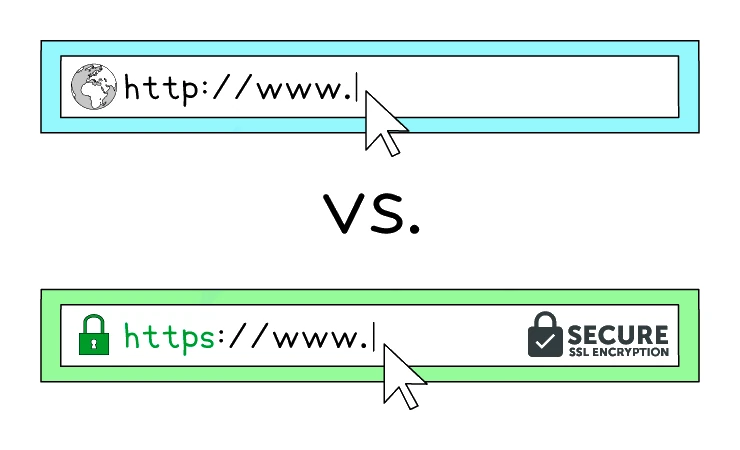
A page loaded over plain HTTP shows http:// in the address bar; a page loaded over the secure version, , shows https:// together with a padlock indicating the connection is encrypted with SSL/TLS.
5. Cookies
A cookie is a small text file stored on the user's device by a website, used to remember information about the user across page loads and visits.
Cookies are set by the web server (sent in an HTTP response) and stored by the browser on the user's device. The browser sends them back with future requests to the same site, so the server can recognise the user.
What cookies typically hold:
- Login state: which user is currently signed in.
- Session data: items in a shopping cart, in-progress form data.
- Preferences: language, dark mode, font size.
- Tracking IDs: a unique identifier for analytics or advertising.
A cookie is a plain text file, not a program. Cookies cannot themselves run code or directly attack the user's computer. (Whether the information they carry is privacy-friendly is a separate question; see "Privacy concerns" below.)
Two types of cookie
Cookies come in two types: session and persistent cookies.
| Session cookie | Persistent cookie | |
|---|---|---|
| Stored in | RAM (the browser's memory) | Hard disk / SSD (a file on the user's device) |
| Lifespan | Lasts only while the browser is open | Has an expiry date; can survive for days, weeks or years |
| Discarded | Once the user closes the browser | When the expiry date passes, or when the user clears them manually |
| Typical use | Keeping the user logged in for one visit; remembering shopping-cart contents during the same browsing session | Remembering login between visits ("remember me"); remembering preferences (e.g. language, theme); long-term analytics and advertising IDs |
Common exam question
Completing statements about cookies and giving their uses
Question: Complete a passage about cookies from a list of terms (6–7 marks), then give three uses of a cookie (3 marks).
Asked in 3 of the 17 papers: twice as the gap-fill plus three uses, once as a table row naming the cookie from its description. Every gap is one mark. Cookies are small text files, sent between web browser and web server and stored by the browser. A session cookie is a temporary file, held in memory, not secondary storage, and lost when the browser (or session) closes. A persistent cookie is a permanent file kept on secondary storage until it is deleted manually or expires. A term may be needed twice (both schemes repeat one), so do not rule out a term you have already placed.
For the uses, any three of: storing login details, saving personal details, holding the items in an online shopping cart, tracking user preferences, storing payment details and targeted advertising.
Privacy concerns
Cookies started out as simple tools for site convenience. Over time, they became a major privacy issue:
- Third-party tracking cookies: cookies set by advertising or analytics companies can be read on every site that includes their tracker (e.g. an ad network). This lets the third party build a profile of the user's browsing across many sites, even ones the user did not realise were linked.
- Personal information storage: some cookies hold names, email addresses, login tokens or other personal data. If the device is shared or compromised, this data may be exposed.
- Session hijacking: if an attacker can read a logged-in user's session cookie (e.g. on an unencrypted connection), they can pretend to be that user. This is one reason every login page should use rather than plain HTTP.
- Lack of transparency: most users do not know exactly what each cookie stores or what the site does with the data.
Legal and technical responses
- Browsers offer cookie controls: settings to block all cookies, third-party cookies, or specific sites.
- Modern browsers are starting to block third-party by default.
- Laws such as the EU's GDPR and the UK's PECR require websites to ask for consent before setting non-essential cookies. This is why most sites now show a cookie banner on first visit.
- Users can manually clear cookies at any time from the browser's settings.
Cookies vs cache
Two related ideas often confused:
- Cookies are small text files that hold information about the user (state, preferences, IDs).
- The browser cache is a temporary store of downloaded resources (images, scripts, stylesheets) so they do not have to be downloaded again on the next visit.
Both improve the browsing experience, but they do different jobs.