Types and Methods of Data Transmission
Computer Science revision notes · Cambridge (CIE) · 0984
1. What data transmission is
Data transmission is how binary data travels between two devices over a wired or wireless link. Almost every computer activity relies on it: clicking a key sends data from the keyboard to the CPU; opening a web page sends data across the internet; printing a document sends data from the computer to the printer.
This topic covers four big questions:
- How is data broken up and routed across a network? ( and .)
- Are the bits sent one at a time or many at once? (Serial vs parallel transmission.)
- Can data flow both ways, and if so, simultaneously? (, , .)
- What is the most common wired connection in everyday use? (USB.)
Two more terms describe how fast a link is: (capacity) and (delay).
2. Data packets
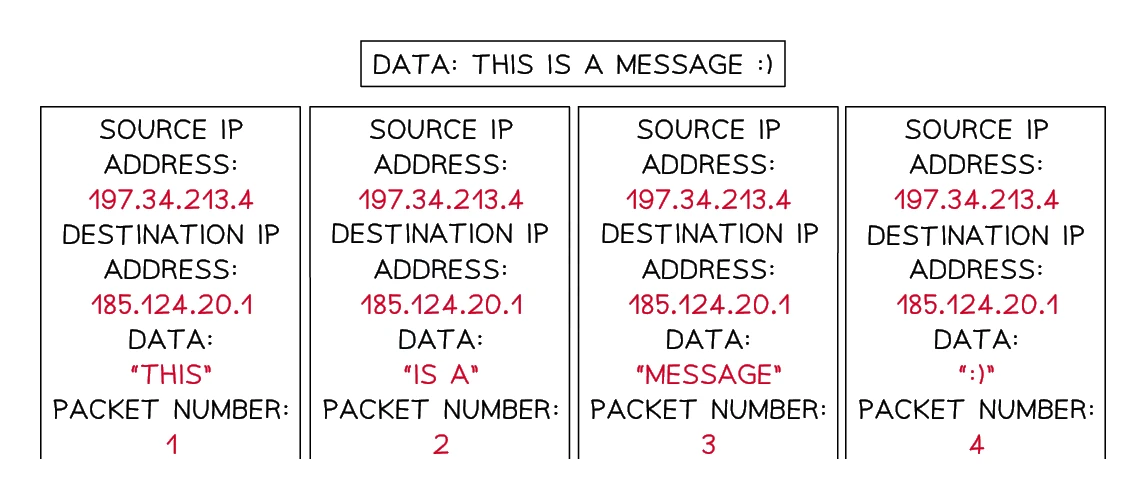
When a large piece of data travels across a network, it is rarely sent in one go. Instead, the data is divided into small packets that travel across the network independently and are reassembled at the far end. Breaking data into packets and routing each one is handled generically by the network: on the internet the packets carry IP addresses and are routed at the IP layer, not by any single protocol on its own.
Small packets are easier to route, because each one can take the quickest available path through the network rather than waiting for one huge chunk to find an uncongested route.
Inside a packet
Every packet contains three sections:
| Section | What it holds |
|---|---|
| Header | The source IP address (which device sent it), the destination IP address (where it is going), and the packet number (e.g. "packet 3 of 5") so the pieces can be put back in order |
| Payload | The actual data being transported (part of an email, part of a web page, part of a video, etc.) |
| Trailer | An end-of-packet marker and an error-check value (a checksum or parity bit) so the receiver can detect corruption |
If a packet is corrupted in transit, the receiver can ask the sender to resend just that one packet rather than the whole message.
Common exam question
Describing the structure of a data packet
Question: Describe the structure of a data packet, identify the items of data held in its header, or complete statements about packets with terms from a list (2–4 marks).
Asked in 4 of the 17 papers. A full description is marked from a list of seven points, one mark each: the packet has three sections; a header, which holds the destination address (with the packet number and the originator's address); a payload, which holds the actual data being sent; and a trailer, which holds the error-detection data. Name each section and say what it holds, because the section and its contents are separate points.
When only the header items are wanted, destination address, packet number and originator's (sender's) address are the credited three; "payload" and "trailer" sit in the list as distractors. The error check belongs in the trailer, never in the header.
3. Packet switching
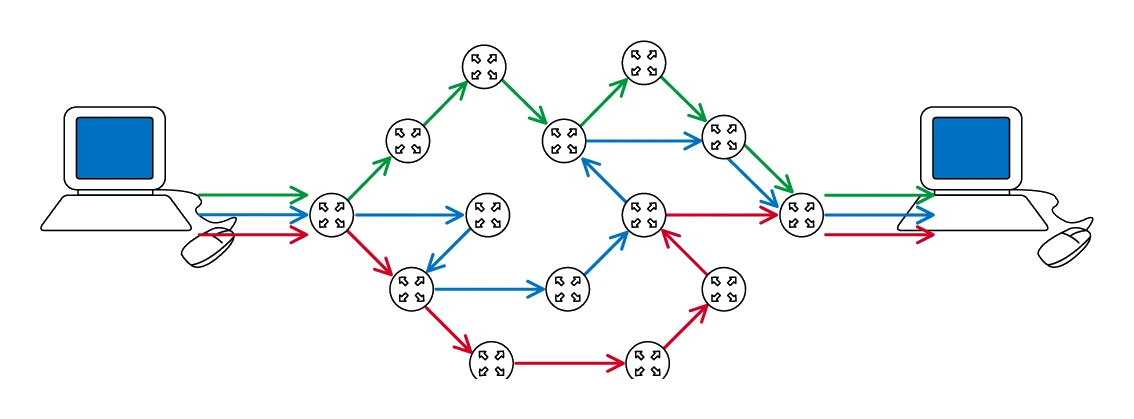
Packet switching is the way networks (including the internet) move packets from sender to receiver. The five stages every time:
- The sender's device breaks the data into and adds a header and trailer to each.
- Each packet is assigned a destination IP address.
- Packets are handed to a router. The router consults its routing table and forwards each packet to a nearby router that is closer to the destination.
- Packets may take different paths through the network. If one route is congested, a router can send the next packet down a less busy route.
- Packets arrive at the destination, possibly out of order. The receiver uses the packet numbers to reassemble them, checks for missing or corrupted packets, and requests any missing packets to be resent.
Common exam question
Describing or drawing packet switching
Question: Complete and annotate a diagram, or complete statements, showing how packet switching carries data from one device to another, including the part the routers play (1–4 marks).
Asked in 4 of the 17 papers. The diagram version gives one mark for each of four ideas: the packets pass through several routers; they take different routes to the destination; they arrive out of order; and they are reordered once they have all arrived. The question asks you to annotate, so label all four: boxes and arrows alone cannot show the last two.
The router's purpose in packet switching is a one-mark answer: it controls the route each packet takes, forwarding it towards its destination by the most efficient path. Naming questions want packet switching itself and the router as the device that chooses each packet's path. In the fill-in-the-terms version, the packets are reordered once the last packet has arrived, not the first.
Advantages of packet switching
- Routes around congestion. If one path is busy, packets can take a different one.
- Resilient to loss. If a packet is corrupted or lost, only that one packet has to be resent, not the whole message.
- Efficient use of the network. Many transmissions share the same links because packets are interleaved, rather than each transmission having its own dedicated wire.
- Harder to eavesdrop on a whole message because each packet may go a different way and an attacker would have to intercept all of them.
4. Serial vs parallel transmission
The first wired-transmission choice is how many bits travel at once.
Serial transmission
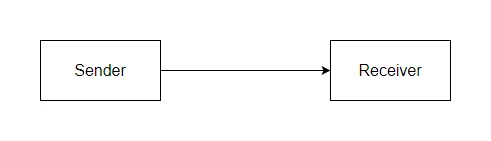
In , bits travel one at a time along a single wire (or one pair of wires). The bits arrive in the order they were sent.
Used by: USB, Ethernet, the internet itself, SATA disk interfaces, HDMI.
Common exam question
Describing how serial transmission sends data
Question: Describe how data is transmitted using serial data transmission, or explain how it is sent using serial simplex transmission (2–3 marks).
Asked in 2 of the 17 papers. Two marks are for the two halves of the definition: the bits travel one at a time, and they travel along a single wire. When the method named is serial simplex, the third mark is for the direction: the data flows in one direction only. Give all three, because a description of serial alone leaves the simplex mark unclaimed.
Parallel transmission
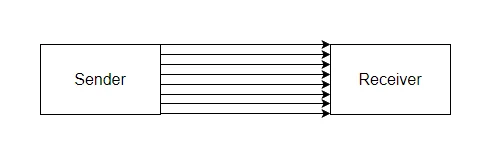
In , several bits travel simultaneously along several wires. With 8 wires you can send a whole byte at once. A clock signal usually keeps the wires synchronised.
Used by: the buses inside a computer (between the CPU and RAM, for example), old printer cables (LPT), older external hard-drive interfaces (IDE).
A subtle problem: skew
Parallel only works while every wire delivers its bit at the same instant. Over long distances, the wires drift slightly out of step (one wire is microscopically longer, or has higher resistance, or is more noisy), so the bits arrive at slightly different times. This effect is called , and it corrupts the data because the receiver can no longer tell which bits belong to which group.
Skew gets worse as distance grows. That is why short, internal connections inside a computer can use parallel happily, but long external links almost always use serial.
Side-by-side
| Feature | Serial | Parallel |
|---|---|---|
| Bits per moment | 1 | Many (one per wire) |
| Number of wires | Few (often 1 or 2) | Many (8, 16, 32 or more) |
| Cable cost | Cheaper | More expensive |
| Speed over short distances | Slower (one bit at a time) | Faster (multiple bits at a time) |
| Reliability over long distances | Much better | Poor (skew, interference) |
| Typical use | USB, Ethernet, internet, modern SSDs | Internal computer buses, legacy printer / drive cables |
Why modern fast links are actually serial
A common surprise: USB 3.0 (serial) runs at 5 Gbps, far faster than the old parallel printer port (about 8 Mbps). Modern serial links use very high clock speeds and avoid the skew problem, so they outrun every classic parallel interface. Parallel is not "always faster than serial"; it only wins over very short distances where skew is negligible.
Common exam question
Justifying serial or parallel for a scenario
Question: Give the benefits of serial transmission, explain why the stated method suits the scenario, or give its drawbacks (1–4 marks).
Asked in 3 of the 17 papers. Each point is one mark and its development ("so the speed is fast", "as the devices are all in one room") is another, so tie each reason to the scenario: distance, amount of data, whether a reply is needed. Serial is credited for no skew, less interference or crosstalk, reliability over a long distance, bits arriving in order, no collisions, and adequate speed for a small amount of data. Parallel is credited for speed, sending several bits at once down several wires, and for a short distance; its drawbacks mirror that: more interference, skew, more collisions when both directions run at once, more errors.
Direction counts too: full-duplex suits users sending to each other at once; where no reply is needed, saying half- or full-duplex is unnecessary earns a mark.
5. Simplex, half-duplex and full-duplex
The second wired-transmission choice is whether data can flow in one direction or both, and whether both directions can happen at once.
Simplex
transmission allows data to flow in one direction only.
The receiving end can never send anything back through this connection.
Examples:
- Radio and television broadcasts (the transmitter sends; the receiver listens but cannot reply)
- A doorbell (button → bell)
- A computer to a monitor (computer sends pixels; the monitor cannot send back)
- A keyboard or mouse to a computer (input device → computer)
Half-duplex
transmission permits data to travel in either direction, but just one way at any given moment.
While one end is sending, the other must wait. The roles switch back and forth.
Examples:
- A walkie-talkie: press the button to talk, release it to listen. Both people cannot talk at the same time.
- CB radio
- Some older network connections
- A printer cable that can also send a "low ink" message back to the computer between print jobs
Full-duplex
transmission allows data to flow in both directions at the same time.
Both ends can send and receive simultaneously, as if there were two separate one-way channels.
Examples:
- A telephone call (both people can talk at the same time)
- Broadband internet (you can upload while downloading)
- A video call (each participant streams video and audio in both directions)
- Modern local-area-network (LAN) cables
Side-by-side
| Direction | One-way only | Both ways, not at once | Both ways, simultaneously |
|---|---|---|---|
| Mode | Simplex | Half-duplex | Full-duplex |
| Example | TV broadcast | Walkie-talkie | Telephone call |
| Cost | Cheapest (no return channel needed) | Cheaper than full-duplex (one shared channel) | Most expensive (needs two channels or clever sharing) |
| Speed of two-way exchange | Cannot do two-way | Slower (must take turns) | Fastest |
Combining serial/parallel with simplex/half/full
These two choices are independent, so any combination is possible:
- Serial + simplex: one bit at a time, one direction only (a TV remote control signal)
- Serial + full-duplex: one bit at a time, both directions at once on two wires (a modern Ethernet link)
- Parallel + half-duplex: many bits at once, taking turns between sender and receiver (older system buses)
Common exam question
Identifying the transmission method from a description
Question: Complete a table or circle the methods that match a description of the wires and the direction of flow, or name another method that could be used (1–4 marks, one per method).
Asked in 3 of the 17 papers. Every answer is two words. The first comes from the wires: a single wire carrying one bit at a time is serial, multiple wires carrying several bits at a time is parallel. The second comes from the direction: one direction only is simplex, both directions but one at a time is half-duplex, both directions at the same time is full-duplex. The mark is for the complete pair, so write both words.
Read the direction clause closely: data going both ways on the same connection, with nothing said about timing, fits half-duplex and full-duplex alike, which is why one question wanted two methods circled. Asked for another method a company could have chosen, any of the other five combinations scores.
6. Universal Serial Bus (USB)
USB (Universal Serial Bus) is the most common wired connection between computers and external devices. As the name says, USB is a serial method: the bits travel one after another along the cable.
Devices that use USB include: keyboards, mice, printers, scanners, external hard drives, flash memory sticks, webcams, mobile phones, audio interfaces, and most other peripherals.
USB connector shapes
The letter in a USB name describes the physical shape of the plug:
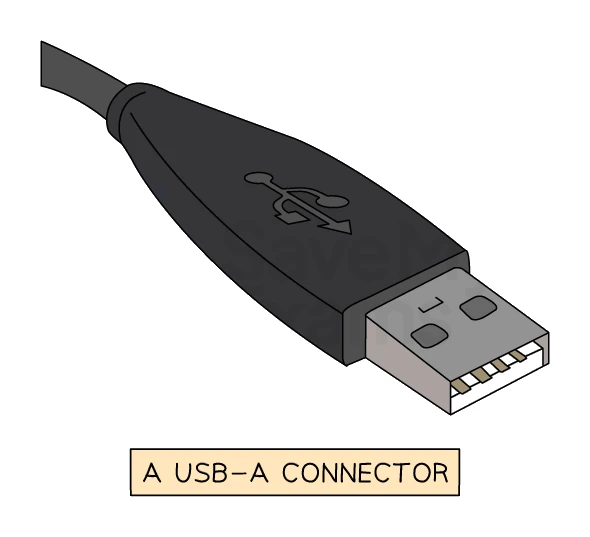
- USB-A: the rectangular plug. Found on flash drives, mice, keyboards, older external storage devices.
- USB-B: square-ish plug. Found on the back of printers and older external storage.
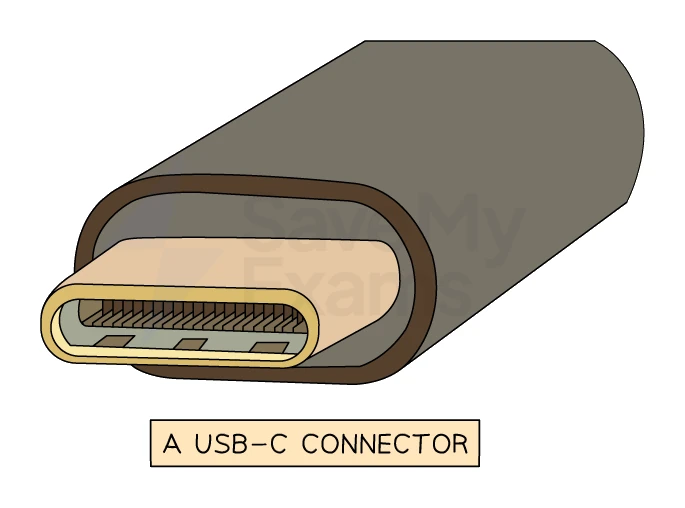
- USB-C: small, oval, symmetrical (can be plugged in either way up). The current standard for phones, laptops and many modern peripherals. Can carry both data and large amounts of power.
USB generations and speeds
The number in a USB name describes the generation, which sets the maximum speed:
| Generation | Maximum speed |
|---|---|
| USB 1.1 | 12 Mbps |
| USB 2.0 | 480 Mbps |
| USB 3.0 / 3.1 / 3.2 | 5 Gbps to 20 Gbps |
| USB4 / USB4 2.0 | Up to 80 Gbps |
Newer USB generations are backwards-compatible with older ones. Plugging a USB 2.0 device into a USB 3.0 port works, but the device runs at USB 2.0 speeds.
Plug-and-play
When a USB device is connected, the operating system automatically:
- Detects that a new device has been plugged in.
- Looks up the device's identifier in its list of drivers.
- Loads the matching driver if it is already installed, or downloads and installs one if not. (For most common device types, a generic built-in driver works without any extra installation.)
- Makes the device available to applications.
This plug-and-play behaviour means the user does not have to manually install drivers or restart the computer in most cases.
Advantages of USB
| Advantage | Why it matters |
|---|---|
| Standardised connector | One port shape works across thousands of products and manufacturers; the plug only fits in one orientation so it cannot be inserted wrongly (USB-C goes in either way up) |
| Plug-and-play | Devices are detected automatically; the correct driver is loaded without user effort |
| Carries power as well as data | Many devices (mice, keyboards, flash drives, phones charging) need no separate power supply |
| High speeds and backwards compatibility | Newer USB generations offer multi-gigabit data rates while still working with older devices |
| Wide industry support | Drivers, cables and documentation are easy to find for any operating system |
Disadvantages of USB
| Disadvantage | Why it matters |
|---|---|
| Limited cable length | Maximum cable length is around 5 m before the signal degrades, so USB is not for long distances |
| Older USB generations are slow by modern standards | USB 2.0 maxes out at 480 Mbps, far below USB 3.0 and beyond |
| Older USB standards may be phased out | USB 1.1 and 2.0 may eventually lose support in future operating systems |
7. Bandwidth and latency
Two completely different measures describe how "fast" a connection is, and they are easy to mix up.
Bandwidth
Bandwidth is the maximum amount of data that can be transmitted per second across a connection, measured in bits per second (bps).
Bandwidth is a capacity: how wide the pipe is. A 100 Mbps connection can carry 100 million bits in every second. Higher bandwidth means more data per second.
Latency
Latency is the time delay between data being sent and being received, measured in milliseconds (ms).
Latency is a delay: how long it takes a single bit (or packet) to make the trip. A 30 ms ping means a packet takes 30 ms to travel from your computer to the server.
Why high bandwidth does not mean low latency
The two measures are independent. A satellite internet link can have:
- High (lots of data per second, because the satellite link is wide)
- High (each packet takes hundreds of milliseconds to travel up to the satellite and back down)
This is why satellite internet feels fine for downloading a film (high bandwidth lets the film stream in real time) but laggy for online gaming (high latency makes every button press feel delayed).
A fibre-to-home connection often has high bandwidth and low latency. A dial-up modem (if you could still find one) has low bandwidth and high latency. Different combinations exist for every kind of link.
Factors that affect transmission speed
Several things affect how fast data is transmitted:
| Factor | Effect |
|---|---|
| Bandwidth of the link | A wider pipe carries more data per second |
| Distance / cable length | Longer cables introduce more signal loss; very long links may also have higher latency |
| Cable type | Fibre optic is much faster than copper twisted pair, which is faster than wireless radio |
| Interference and noise | Electromagnetic interference from nearby cables, motors, microwaves; physical obstacles for Wi-Fi |
| Number of users (contention) | A shared link slows down as more users compete for it |
| The quality of routers, switches and intermediate equipment | Old or overloaded routers add latency |
| Whether data is being compressed | Compressed data uses less bandwidth (covered in topic 3) |
Bandwidth, latency and packet switching
In packet switching:
- Bandwidth sets the maximum total amount of data the link can carry per second.
- Latency sets how long each individual packet takes to arrive.
- Network congestion affects both: contention reduces effective bandwidth and increases latency as packets sit in router queues.
For applications like video streaming, bandwidth is the headline number (you need enough capacity for the bitrate of the video). For online gaming or video calls, latency matters more, since even a fast link feels broken if every action arrives 500 ms late.