1. What cyber security is
Cyber security is the protection of computer systems, networks and data from threats such as theft, damage and unauthorised access.
A threat is anything that tries to steal, alter, damage or block access to data, or to gain control of a system without permission. This topic has two halves: the threats an attacker can use, and the solutions that keep data safe from them. For every threat the exam expects you to describe what it is, how it works and what the attacker aims to achieve; for every solution it expects what it does and how it protects the data.
2. Brute-force attack
A tries to discover a password by systematically trying every possible combination of characters until the correct one is found.
The attacker usually runs software that automatically generates and tests guesses, often starting with common passwords and dictionary words before moving on to longer combinations. The shorter and simpler the password, the faster the attack succeeds. A long password that mixes upper and lower case, digits and symbols has so many possible combinations that trying them all takes an impractical amount of time.
3. Data interception
Data interception is the capturing of data as it travels across a network, so that the attacker can read or steal it.
An attacker can use packet-sniffing software to copy data packets passing over a wired network, or capture the radio signals of a wireless network within range. Once intercepted, unencrypted data can be read directly. Interception is the reason sensitive data is encrypted before transmission: the attacker may still capture the packets, but without the key they are meaningless.
4. Distributed denial of service (DDoS) attack
A distributed denial of service (DDoS) attack floods a server with so many requests that it cannot respond to legitimate users, making the service slow or completely unavailable.
The attack is distributed because the flood of requests comes from many computers at once, often a network of machines that have been infected with malware (a botnet) and are controlled remotely without their owners' knowledge. The server is overwhelmed by the sheer volume of traffic and either slows to a crawl or stops responding entirely. A DDoS attack does not usually steal data; its aim is to disrupt access to a service.
Common exam question
Describing or drawing the stages of a DDoS attack
Question: Draw and annotate a diagram of a DDoS attack, or complete statements about one from a word list, and sometimes state the attacker's aims (2–6 marks).
Asked in 2 of the 17 papers. Both versions follow the same chain: malware is downloaded onto many computers, turning each into a bot (or zombie); together they form a botnet; a third party starts the attack; the bots all flood a web server with requests at once; it fails under the load; and genuine requests can no longer get through. A drawing earns a mark for each stage it shows, up to six, so label every arrow.
The word-list version marks one term per gap, in order. Keep bot (one infected computer) apart from botnet (the network), and the web server (the hardware) apart from the website stored on it. Credited aims (2 marks) include revenge, harming a company's reputation, entertainment, a ransom to stop the attack, and testing a system's resilience.
5. Hacking
Hacking is gaining unauthorised access to a computer system or data.
A hacker exploits weaknesses such as a weak password, unpatched software, or an open network port to get into a system they have no permission to use. Once inside, they may read, copy, alter or delete data, or use the system to launch further attacks. Strong authentication, firewalls and up-to-date software all make hacking harder.
6. Malware
(malicious software) is any software written to damage a system, disrupt its operation, or gain unauthorised access to data.
The syllabus names six types of malware.
| Type | What it is and how it works |
|---|---|
| Virus | Malicious code that attaches itself to a file or program and replicates when that file is run, spreading to other files and often corrupting or deleting data. It needs the user to run the infected file (an "active host") to spread |
| Worm | Self-replicating malware that spreads by itself across a network without needing to attach to a file or be run by the user, often consuming bandwidth and slowing systems as it multiplies |
| Trojan horse | Malware disguised as legitimate, harmless software that the user is tricked into installing; once run, it carries out a harmful action such as opening a back door for an attacker. It does not replicate by itself |
| Spyware | Software that secretly monitors and records what the user does, such as logging keystrokes (key-logging) to capture passwords and personal details, and sends the information to the attacker |
| Adware | Software that floods the device with unwanted advertisements; some adware also tracks browsing to target the adverts, and it can slow the system and reduce privacy |
| Ransomware | Malware that encrypts the user's files and then demands a payment (a ransom) in exchange for the key needed to decrypt them, blocking access to the data until the victim pays |
Exam tip
Phishing is a cyber threat but not malware
Malware is software, so when a multiple-choice question asks which threat in a list is not a type of malware, pick the one that is not a program. Phishing is a fake message that tricks the user, so it is the odd one out beside ransomware, a virus and a worm. When you are asked for one more example of malware, choose a type the question has not already named: with those three printed, spyware (a keylogger was accepted too), adware or a Trojan horse each took the mark. The software that finds and removes malware is anti-malware.
7. Pharming
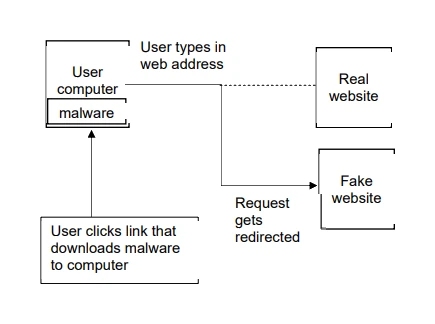
redirects a user to a fake website without their knowledge, even when they type the correct address, so that their entered details can be stolen.
The attacker installs malicious code on the user's computer or alters records on a DNS server so that the real web address resolves to the attacker's fake site instead. The fake site is made to look like the genuine one, so the user enters their login details or card numbers and unknowingly hands them to the attacker. The user does nothing wrong: they typed the right address, but the request was redirected behind the scenes.
8. Phishing
sends fake messages that appear to come from a trusted source to trick the user into revealing personal or financial details.
The message is usually an email or text that looks like it is from a real bank, shop or service. It often contains a link to a fake website or asks the user to reply with sensitive information. Clues that a message is phishing include spelling and grammar errors, an urgent or threatening tone, a greeting that is not personalised, and a link whose real URL does not match the genuine organisation. Unlike pharming, phishing relies on the user choosing to click or reply.
9. Social engineering
manipulates people into giving away confidential information or access, by exploiting human trust rather than technical weaknesses.
Instead of attacking the computer, the attacker attacks the person. They might phone an employee while pretending to be IT support and ask for a password, leave an infected USB stick where a curious person will plug it in, or create a sense of fear or urgency that pressures the victim into acting without thinking. Phishing is one common form of social engineering. The defence is awareness and following security procedures, because no firewall can stop a user who is tricked into handing over their own details.
Exam tip
Describing social engineering with an example
A question asking you to describe social engineering and include an example (3 marks) gives two marks to the description and one to the example. The description needs both halves: the attacker manipulates, deceives or tricks people, and does it to get hold of their data or to push them into making a mistake. Then add one realistic example, such as a caller posing as IT support who asks for a password, or an infected USB stick left where someone will plug it in. Leave the example out and two marks is the most you can score.
10. Keeping data safe: the solutions
The second half of the syllabus lists the methods used to protect data from the threats above. Each one closes off a particular kind of attack, and a well-secured system uses several together.
Common exam question
Giving a security solution for a named threat
Question: Give security solutions that help protect against a named threat, such as a DDoS attack, pharming or data interception, and sometimes say why one helps (2–3 marks).
Asked in 3 of the 17 papers, a different threat each time. Against a DDoS attack the schemes credit a proxy server, a firewall, or users scanning their computers with anti-malware. Against pharming they include checking the spelling and tone of an email or website, checking the URL behind a link, scanning downloads with anti-malware, downloading only from trusted sources, never giving personal details online, and a firewall checking the website is genuine. Against data interception it is encryption.
A plain "give" question accepts the name alone, such as "firewall" or "proxy server". When you must also say why, the second mark is for the effect: encrypted data is meaningless without the key to decrypt it. If each threat needs a different solution, a repeat is not credited.
11. Access levels
Access levels give each user only the permissions they need, so that not everyone can see or change all of the data.
Different users are granted different rights: a normal employee might be able to read certain records, a manager to edit them, and only an administrator to delete them or change settings. Limiting access this way means that if one account is compromised, the damage is contained to what that account was allowed to do, and it stops users from seeing data they have no reason to access.
12. Anti-malware
Anti- software detects, blocks and removes malware. It includes anti-virus and anti-spyware tools.
Anti-virus software scans files against a database of known malware signatures and watches for suspicious behaviour, quarantining or deleting anything it finds. Anti-spyware specifically detects and removes software that secretly monitors the user. Anti-malware must be kept up to date so it can recognise newly released threats, and it usually runs scans both automatically in the background and on demand.
13. Authentication
Authentication confirms that a user is who they claim to be before granting access.
Three authentication methods are on the syllabus.
| Method | How it works |
|---|---|
| Username and password | The user proves their identity with a secret password tied to their account. A strong password (long, mixing letters, digits and symbols) resists brute-force and guessing attacks |
| Biometrics | The system checks a unique physical characteristic such as a fingerprint, face or iris. Biometric data is very hard to fake and cannot be forgotten or easily shared |
| Two-step verification | Access requires two separate pieces of evidence, for example a password plus a one-time code sent to the user's phone. Even if an attacker steals the password, they still cannot log in without the second factor |
14. Automating software updates
Automating software updates sets software to download and install updates by itself as soon as they are released.
Updates often include security patches that fix newly discovered weaknesses. Attackers target systems running out-of-date software because the holes are already known. Automating updates means the patches are applied promptly without relying on the user to remember, closing those weaknesses before they can be exploited.
15. Checking communications
Carefully checking messages and links helps the user spot phishing and other fraudulent communications before acting on them.
- Checking the spelling and tone of a communication. Genuine organisations rarely send messages full of spelling and grammar mistakes, and they do not usually use a threatening or unusually urgent tone. Poor spelling and pressure to act immediately are warning signs of a phishing attempt.
- Checking the URL attached to a link. Hovering over a link reveals the real web address it points to. If the URL does not match the organisation it claims to be from, or uses a misspelled or unusual domain name, the link should not be clicked.
16. Firewalls
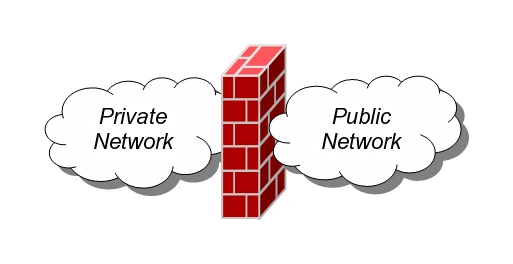
A monitors the traffic entering and leaving a network or device and blocks anything that does not meet its security rules.
A firewall sits between the trusted internal network and the outside internet. It examines each packet against a set of rules (criteria) and allows through only the traffic that is permitted, blocking the rest. It can keep a list of blocked or allowed addresses, and it helps prevent unauthorised access and stops malware from communicating out to an attacker. A firewall can be hardware, software, or both.
Common exam question
Drawing how a firewall works or data is intercepted
Question: Draw and annotate a diagram to show how a firewall works, or how data is intercepted as it travels (4 marks).
Asked in 2 of the 17 papers. Each point the diagram shows earns a mark, so make every point a label or an arrow (a DDoS drawing is marked the same way). For a firewall between a network and the internet, show any four of: traffic passing through it in both directions; criteria (rules) set on it; traffic compared with the criteria; traffic rejected, and traffic accepted, according to whether it meets them. One-way arrows miss the first point.
For data interception, show any four of: data travelling between two devices; the data examined while in transit; a packet sniffer doing it; the captured data passed to a third party who analyses it for anything useful; or the connection hacked to spoof the destination address.
17. Privacy settings
Privacy settings are the controls on accounts, devices and applications that limit what personal data is shared and who can see it.
Tightening privacy settings on a social media account, browser or app reduces how much personal information is exposed, who can view a user's posts or profile, and how much data is collected and passed to third parties. Sharing less information gives attackers less to work with for social engineering and identity theft.
18. Proxy servers
A acts as an intermediary between the user and the internet, forwarding requests on the user's behalf and hiding the user's own address.
Web requests go to the proxy, which then fetches the pages and passes them back, so the destination server sees the proxy's address rather than the user's. A proxy can filter traffic to block access to undesirable or malicious sites, hide the user's IP address for privacy, and cache frequently requested pages to speed up access. It can also absorb some attack traffic before it reaches the real server, helping to protect against attacks such as DDoS.
19. Secure Socket Layer (SSL)
SSL (Secure Socket Layer) is a security protocol that encrypts data sent between a web browser and a web server, so that intercepted data cannot be read.
When a browser connects to a secure site, the browser and server carry out an SSL handshake: the browser asks the server to identify itself, the server sends back its digital certificate, and the browser checks that the certificate is authentic. The two then agree on the keys used to encrypt the session. After the handshake, all data passing between them is encrypted, so even if it is intercepted it is meaningless to the attacker. A site protected by SSL shows https and a padlock symbol in the address bar. SSL is what makes activities such as online banking and shopping safe to carry out over the public internet.
Common exam question
Stating how SSL secures data in transmission
Question: State how the SSL protocol secures data for transmission, or complete a paragraph about how an SSL connection starts, choosing terms from a list (1–5 marks).
Asked in 2 of the 17 papers. The one-mark version accepts either idea: SSL encrypts the data, or it uses digital certificates.
The paragraph version gives one mark per gap, in order, and follows how the connection begins: the web browser asks the web server to identify itself, the web server replies with its digital certificate, the web browser checks that the certificate is authentic, and only then does encrypted transmission begin. The list also offers distractors such as unencrypted, HTTP, URL and file server, and the five answers use only three terms. Keep track of which side is acting: the browser asks and checks, while the server proves who it is.